By Kim · Facts checked 5 Nov 2026 · Clone options and error checks checked on GitHub Docs snapshots dated 5 Nov 2026
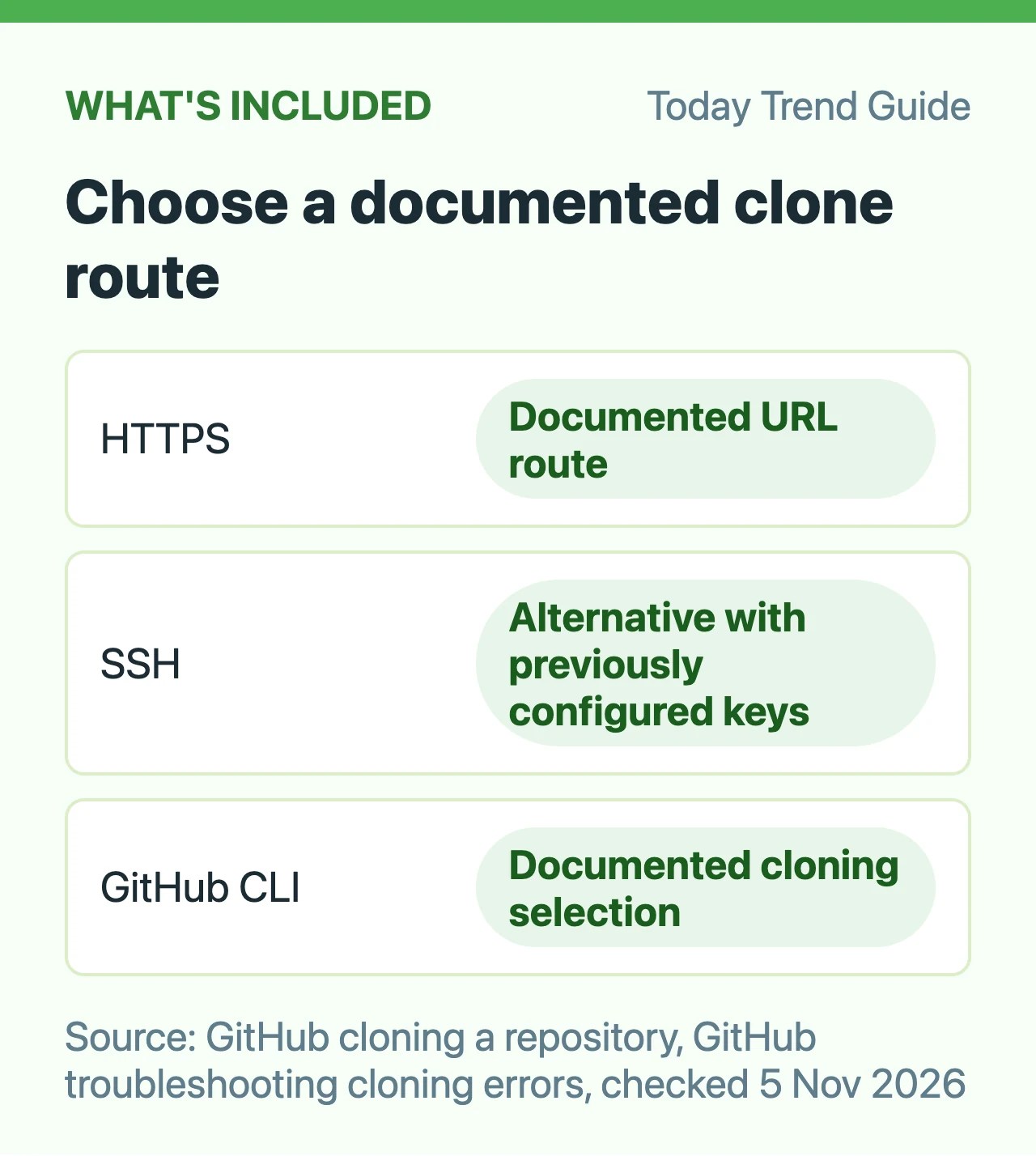
It depends: Choose the documented HTTPS route, or use the SSH clone URL if you've previously configured SSH keys.
Good fit: You need to copy a repository URL and distinguish repository permission, authentication and default-branch failures.
Not a fit: You need credential setup or a guaranteed repair; these documented checks don't establish a successful clone.
| HTTPS | Copy the HTTPS URL from Code |
|---|---|
| SSH | An alternative with previously configured SSH keys |
| GitHub CLI | A documented cloning selection |
| Empty repository | Find command-line HTTPS under Quick setup |
| Repository not found | Nonexistent repository or insufficient permission |
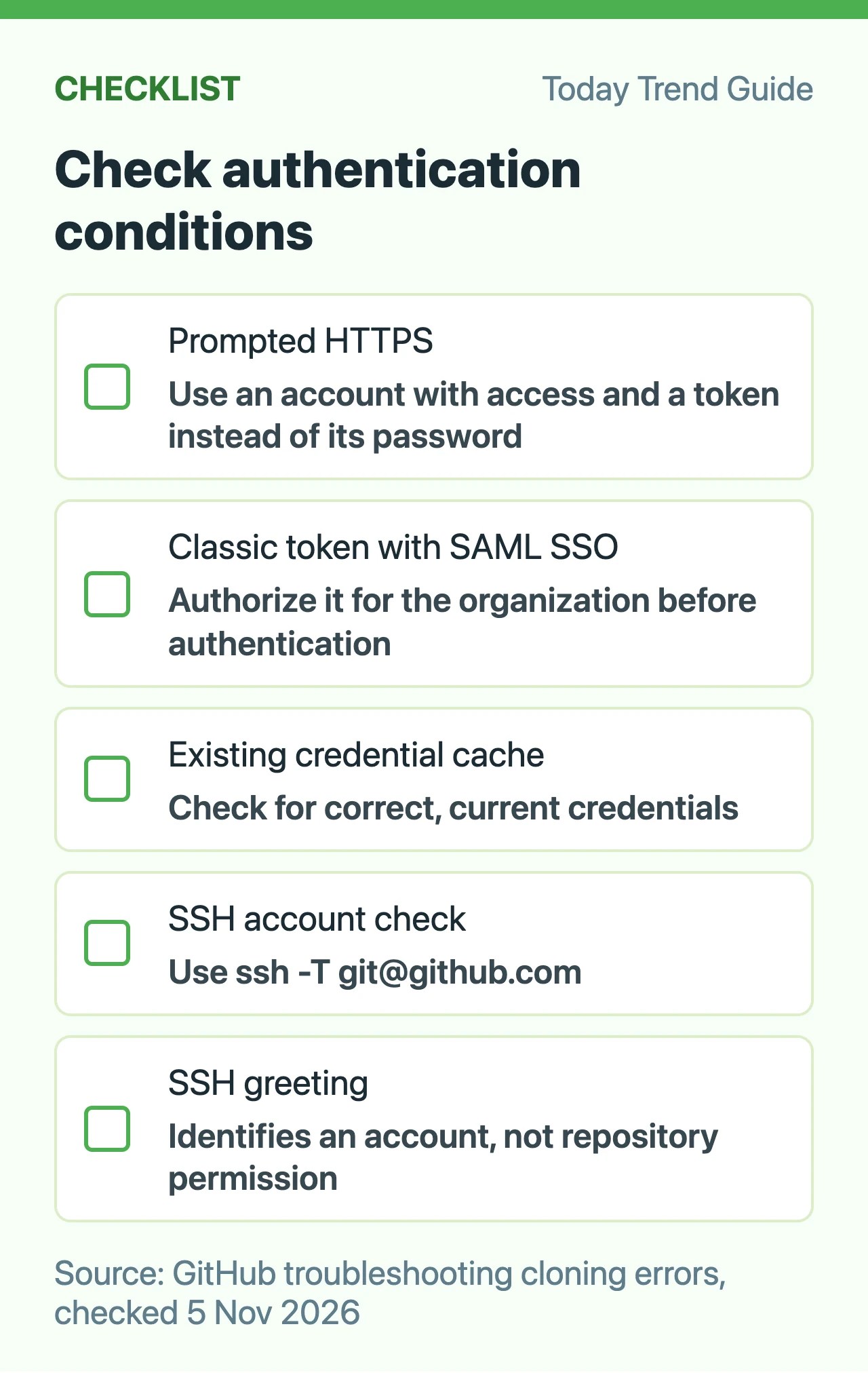
| Prompted HTTPS | Use an account with access and a token instead of its password; authorize classic tokens for SAML SSO organizations |
| Remote HEAD error | Deleted default branch; documented repair requires a repository administrator |
Your GitHub clone method choice and troubleshooting start with your existing setup: HTTPS is a documented route, and previously configured SSH keys make the SSH URL an available alternative. GitHub also offers a GitHub CLI selection.
We recommend separating that choice from the question of repository access. A copied URL avoids spelling errors, but repository not found can still mean either a nonexistent repository or insufficient permission. Authentication has its own checks, and a deleted default branch has an administrator boundary. Follow the copied-URL procedure first, then use the check that matches your error.
Existing SSH keys guide GitHub clone method choice and troubleshooting
Use the SSH clone URL as an alternative to HTTPS when you've previously configured SSH keys. Based on official documentation (checked 5 November 2026).
| Route: HTTPS |
Repository-page selection: HTTPS under Code |
Documented scope: Copy the HTTPS repository URL |
| Route: SSH |
Repository-page selection: SSH under Code |
Documented scope: Clone using an SSH key, including an organization-issued SSH certificate |
| Route: GitHub CLI |
Repository-page selection: GitHub CLI under Code |
Documented scope: Select GitHub's documented CLI cloning option |
The SSH condition gives you a concrete choice without establishing that SSH is superior. I would base that choice on the keys you've already configured. Whichever route you choose, check permission to access the target repository; account authentication and repository permission are separate questions.
Copy from Code, or Quick setup for an empty repository
Copy the clone URL from Code on the repository page; use Quick setup for an empty repository's command-line HTTPS option. GitHub recommends copying and pasting the URL to avoid spelling errors.
- Navigate to the repository's main page on GitHub.
- Click Code and copy the HTTPS or SSH URL. For an empty repository's command-line HTTPS option, use Quick setup.
- Open Terminal.
- Change the current working directory to where you want the cloned directory.
- Type
git clone, then paste the copied URL. - Press Enter to create your local clone.
These are GitHub's documented instructions, not an executed result. Cloning pulls down the repository data GitHub has at that point in time, including all versions of every file and folder.
If you already have a local repository, git remote -v displays its configured remote URLs. It isn't a first-clone prerequisite or proof of repository access.
Repository not found leaves existence and permission unresolved
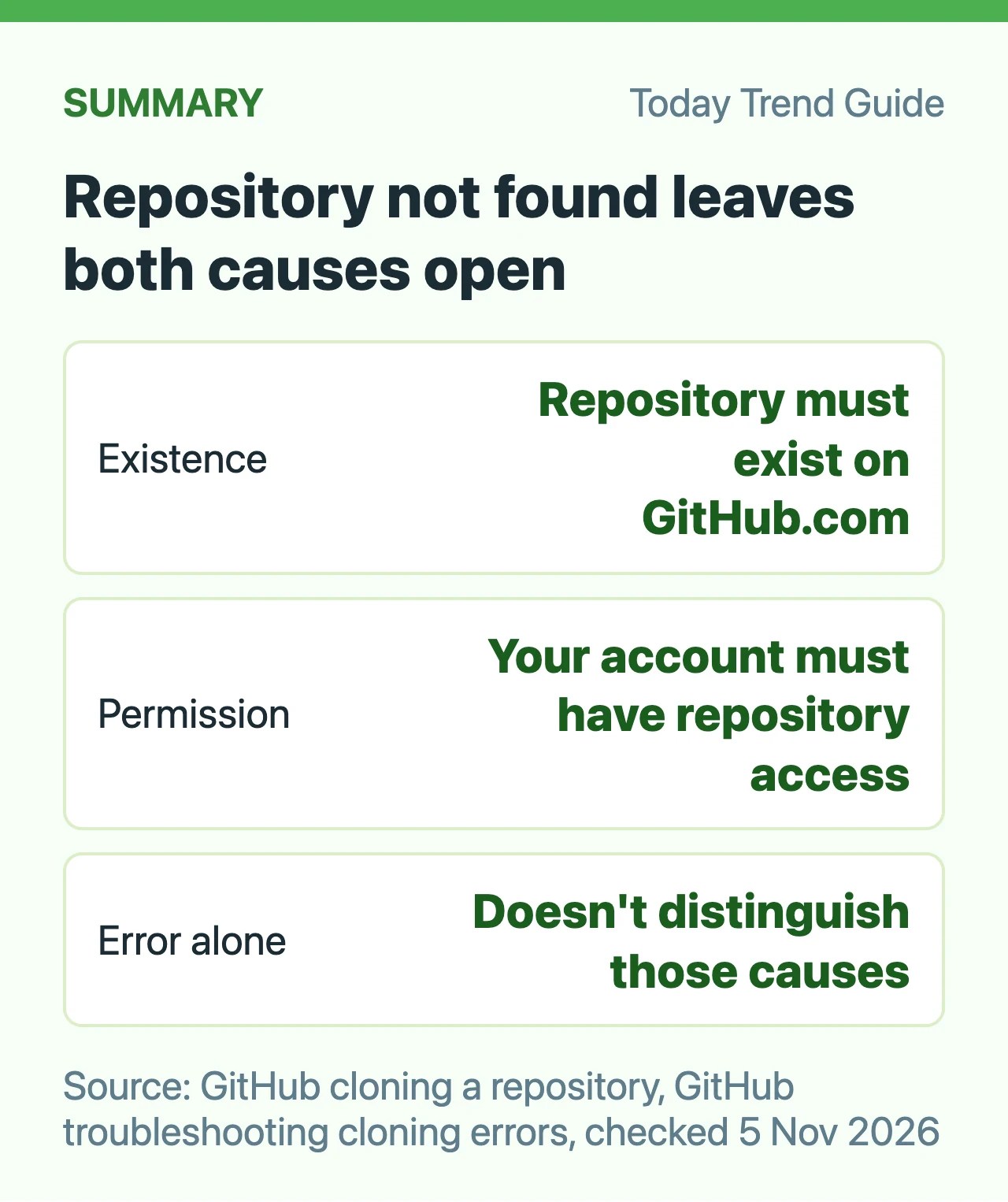
Repository not found means the repository doesn't exist or you don't have permission to access it. The message alone doesn't distinguish those causes. GitHub explicitly says that trying to clone a private repository without permission to view it produces this error.
| Access relationship: Owner |
GitHub's private-repository permission condition: You own the repository |
| Access relationship: Collaborator |
GitHub's private-repository permission condition: You are a collaborator on the repository |
| Access relationship: Organization team member |
GitHub's private-repository permission condition: Your team has access to the organization repository |
Check the copied URL, repository existence and your access relationship before concluding that the repository was deleted. The relationships above come from GitHub's private-repository guidance; they aren't established as an exhaustive taxonomy for every repository.
For personal-account repositories, collaborators can read and write; they can't have read-only collaborator access. Removing a collaborator revokes that access, but they retain local clones. An old checkout therefore doesn't establish current permission.
Check prompted HTTPS credentials and the SSH greeting's account
For prompted HTTPS authentication, check the account and token conditions; for SSH, identify the personal account associated with your key. We recommend using the relevant checks below rather than treating a successful SSH greeting as repository permission.
- When HTTPS prompts for a username and password, use an account with access to the repository and a personal access token instead of the account password.
- If you're using a personal access token (classic) to access an organization that uses SAML SSO, authorize that token for the organization before authenticating.
- If you already use credential caching, check that the cached credentials are correct and current. Incorrect or outdated cached credentials cause authentication to fail.
- For SSH, use the documented check
ssh -T git@github.comto check that the key is attached to your personal GitHub account.
GitHub's example greeting names USERNAME and reports successful authentication without shell access. That username identifies the authenticated account; it doesn't establish permission to clone your target repository. Compare the account with the repository's access relationships.
A deleted default branch requires administrator involvement
The error Remote HEAD refers to nonexistent ref, unable to checkout indicates that the repository's default branch has been deleted on GitHub.com. GitHub's documented repair requires repository administrator authority; involve an administrator if you don't have it.
Check branch existence separately from credentials. GitHub's general unable-to-clone guidance also asks you to check HTTPS connectivity and permission to access the repository.
Repository administrators can inspect the access list
If you administer the repository, you can inspect an overview of teams and people with access. This optional permission review is an administrator tool, separate from the clone user's account and cached-credential checks.
- Navigate to the repository's main page on GitHub.
- Click Settings under the repository name. If the tab isn't visible, select the dropdown menu and then Settings.
- In the sidebar's Access section, click Collaborators & teams.
- Under Manage access, start typing the team or person's name.
To see the source of conflicting access in that overview, hover over the warning icon or click Mixed roles.
The catches: GitHub authentication doesn't establish repository access
- NOTE: Repository not found doesn't distinguish a nonexistent repository from insufficient permission.
- NOTE: A successful SSH greeting identifies an account, not permission to clone a particular repository.
- NOTE: An organization owner may restrict OAuth app access when you use an SSH key generated by an OAuth app.
- NOTE: The documented deleted-default-branch repair requires repository administrator authority.
Existing SSH keys offer an alternative to the HTTPS URL
- SSH instead of HTTPS: Consider the SSH clone URL when you've previously configured SSH keys; GitHub documents it as an available alternative.
- GitHub CLI selection: Select GitHub CLI if that is your intended cloning route. The documentation establishes availability, not a comparative advantage.
Check these first: GitHub URL, access, credentials and branch
- Copy the repository URL from Code; use Quick setup for an empty repository's command-line HTTPS option.
- Check repository existence and permission; for private repositories, check the owner, collaborator or organization-team access relationship.
- For prompted HTTPS, use an account with repository access and a personal access token instead of its password. Authorize a classic token for a SAML SSO organization before authenticating.
- If you already use credential caching, check that cached credentials are correct and current.
- For SSH, check the key's account with
ssh -T git@github.com; the greeting doesn't establish target-repository permission. - Check HTTPS connectivity and default-branch existence; involve a repository administrator for the documented deleted-default-branch repair.
- Current live GitHub Docs content wasn't independently retrieved; this guide uses official-page snapshots dated 5 November 2026.
- No successful clone, retry or resulting local repository was independently verified.
- GitHub CLI setup, authentication workflow and command syntax aren't established here.
- Credential creation, storage and comprehensive repair procedures aren't covered.
Quick questions
Which cloning routes does GitHub document?
GitHub documents HTTPS, SSH and GitHub CLI. Its SSH option includes keys and certificates issued by an organization's SSH certificate authority.
When does a previously configured SSH key make the SSH clone URL an available alternative to HTTPS?
GitHub says you can use the SSH clone URL instead of HTTPS if you've previously set up SSH keys. That condition doesn't establish comparative superiority.
Where should I copy the repository URL, including for an empty repository?
Use Code on the repository's main page. For an empty repository's command-line HTTPS option, use Quick setup.
Copy the repository URL and choose a documented route based on your existing setup. Match the error to repository existence, permission, authentication or default-branch existence. Involve a repository administrator when the deleted-default-branch repair requires authority you don't have.
Sources we used
- GitHub cloning a repository (checked 5 Nov 2026)
- GitHub troubleshooting cloning errors (checked 5 Nov 2026)
- GitHub personal account repository permissions (checked 5 Nov 2026)
- GitHub managing teams and people with repository access (checked 5 Nov 2026)
This guide draws on GitHub cloning a repository, GitHub troubleshooting cloning errors, GitHub personal account repository permissions and others (4 pages), and its figures were checked against that text. Facts last checked 5 Nov 2026.