By Kim · Facts checked 30 Oct 2026 · Computer-use requirements and approvals checked on Claude Code Docs
If you’re trying to enable computer use and approve apps in Claude Code, enabling the server isn’t the whole setup. The documentation requires an eligible macOS setup, claude.ai authentication, an interactive session, and both macOS permissions. We recommend checking those conditions before changing app approvals.
Project enablement persists, but app approvals last only for the session. Those approvals also deserve more scrutiny than an interaction label alone suggests: terminals and IDEs are click-only, yet carry an equivalent-to-shell-access warning. Stopping has a separate boundary, too: Esc or Ctrl+C returns control to you, while the computer-use lock remains until the holding session exits.
Check eligibility and access before computer use
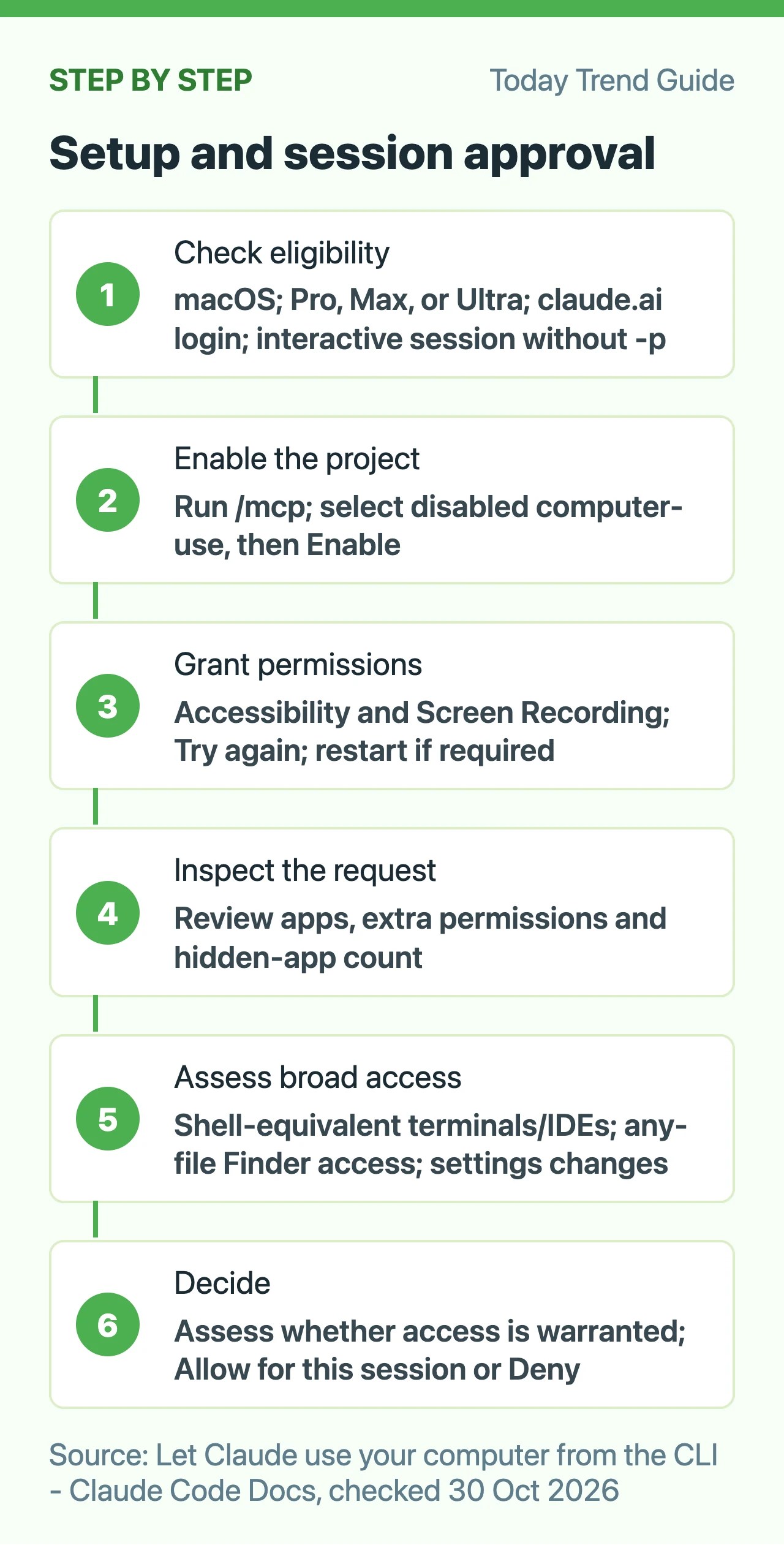
- Confirm macOS, a Pro, Max, or Ultra plan, claude.ai authentication, and an interactive session without
-p. - Run
/mcp, selectcomputer-use, and choose Enable for the project. - Grant Accessibility and Screen Recording, then select Try again; restart Claude Code if macOS requires it.
- Inspect requested apps, extra permissions, and the hidden-app count before choosing Allow for this session or Deny.
- Assess broad-access warnings: terminals and IDEs are equivalent to shell access, Finder can read or write any file, and System Settings can change system settings. Decide whether the task warrants that access.
- For desktop, Dock, or Finder-window interaction, review Finder’s broad file-access warning and decide whether to approve it.
- Use
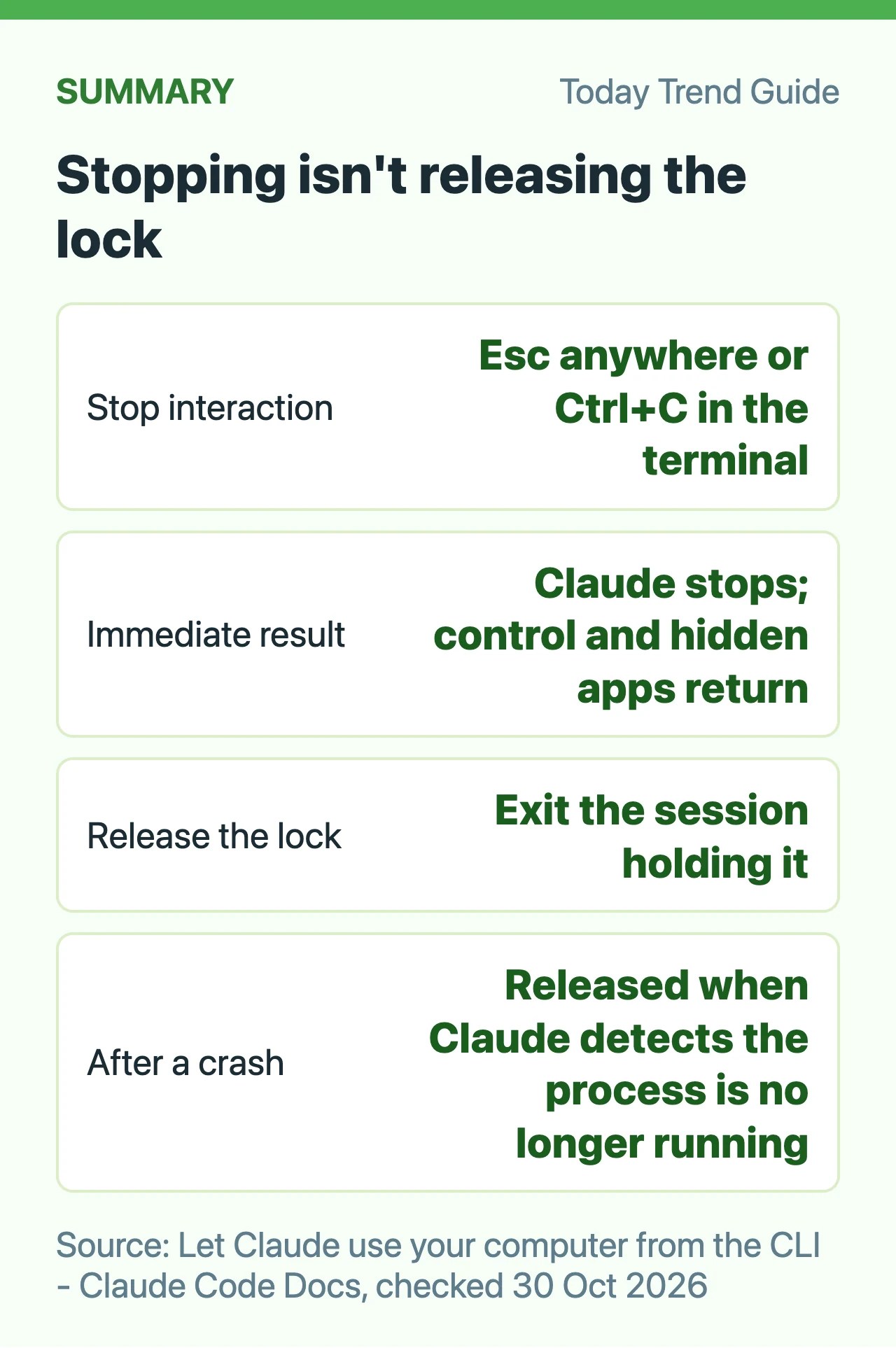
EscorCtrl+Cto stop interaction; exit the holding session when its computer-use lock must be released.
Check your Mac, plan, login and session first
Check eligibility before enabling computer use. Based on official documentation (checked 30 October 2026).
- Use macOS, where computer use is a research preview.
- Use a Pro, Max, or Ultra plan; Team and Enterprise aren’t eligible.
- Authenticate through claude.ai; computer use isn’t available through Amazon Bedrock, Google Cloud’s Agent Platform, or Microsoft Foundry.
- Start an interactive Claude Code session; non-interactive mode with
-pisn’t supported.
We recommend resolving eligibility first: enabling the project and granting macOS permissions don’t replace these requirements.
Enable computer-use, then grant both permissions
Enable computer-use for the project, then grant Accessibility and Screen Recording when Claude first tries to use your computer.
- In an interactive Claude Code session, run
/mcp. - Find
computer-usein the server list, where it shows as disabled. - Select
computer-useand choose Enable. This setting persists per project. - When prompted, follow the links to System Settings and grant Accessibility and Screen Recording.
- Select Try again. Restart Claude Code if macOS requires it after the Screen Recording grant.
Accessibility lets Claude click, type, and scroll. Screen Recording lets Claude see your screen. Both permissions are required.
Assess broad access before approving session apps
Before approving an app, inspect the requested access and decide whether your task warrants it.
When Claude first needs a specific app in a session, the terminal prompt identifies the requested apps, extra permissions such as clipboard access, and how many other apps will be hidden.
| App: Terminals and IDEs |
Documented broad-access warning: Equivalent to shell access |
Approval decision: Assess whether the task warrants shell-equivalent access |
| App: Finder |
Documented broad-access warning: Can read or write any file |
Approval decision: Assess broad file access before approving desktop, Dock, or Finder-window interaction |
| App: System Settings |
Documented broad-access warning: Can change system settings |
Approval decision: Assess whether the task warrants settings changes |
Note: These apps aren’t blocked. Their warnings let you decide whether the task warrants that access. Finder approval lets Claude click the desktop, the Dock, or a Finder window; its warning states that it can read or write any file.
Choose Allow for this session or Deny. You can approve multiple apps together when Claude requests them together.
| Setting or approval: Enable computer-use |
Scope: Project |
Lifetime: Persists per project |
| Setting or approval: Allow for this session |
Scope: Requested apps |
Lifetime: Current session |
We recommend treating project enablement and app approval as separate decisions: persistent enablement doesn’t make app consent persistent.
Click-only apps can still carry broad-access warnings
Click-only describes the documented interaction tier for terminals and IDEs; it doesn’t cancel their equivalent-to-shell-access warning.
| App category: Browsers and trading platforms |
Documented interaction tier: View-only |
| App category: Terminals and IDEs |
Documented interaction tier: Click-only |
| App category: Everything else |
Documented interaction tier: Full control |
Read the interaction tier alongside the approval warning, rather than treating click-only as a guarantee of limited downstream effects. Finder’s warning concerns reading or writing any file; System Settings’ warning concerns changing system settings.
When Claude starts controlling the screen, other visible apps are hidden so it interacts with approved apps. Your terminal remains visible and is excluded from screenshots, so you can watch the session without Claude seeing its own output. Hidden apps return automatically when Claude finishes the turn.
Use Esc to stop; exit to release the lock
Press Esc anywhere or Ctrl+C in the terminal to stop screen interaction; exit the holding session to release its computer-use lock.
Either stop action returns control to you and restores hidden apps. Only one session at a time can use the computer. Its lock starts at the first computer-use action and lasts until the session exits, even after the task finishes.
- To interrupt screen interaction, press
Escanywhere orCtrl+Cin the terminal. - If another Claude session is using computer use, exit the session holding the lock.
- If that session crashed, the lock releases automatically when Claude detects that its process is no longer running.
Assess computer-use warnings before allowing access
- NOTE: Terminals and IDEs are click-only but carry an equivalent-to-shell-access warning; assess whether your task warrants that access.
- NOTE: Finder can read or write any file, and System Settings can change system settings. Review those warnings before approval.
- NOTE: macOS may require restarting Claude Code after you grant Screen Recording.
- NOTE: Stopping an action or finishing a task doesn’t release the session’s computer-use lock.
Best for: Use computer use for screen interaction on an eligible Mac setup; grant both macOS permissions and assess app-access warnings before approving apps.
Good fit: It fits Pro, Max, or Ultra users authenticated through claude.ai in an interactive Claude Code session.
Not a fit: It isn’t available on Team or Enterprise plans, through third-party providers, or in non-interactive mode with -p.
| Eligibility | Research preview on macOS; Pro, Max, or Ultra |
|---|---|
| Authentication | claude.ai authentication required |
| Session mode | Interactive session required; unavailable with -p |
| macOS permissions | Accessibility and Screen Recording |
| Approval lifetime | Project enablement persists; app approvals last for the current session |
| Computer-use lock | Only one session at a time; released when the holding session exits |
Use MCP, Bash or Chrome when the task fits
- A service’s MCP server: When you have an MCP server for the service, Claude uses it before computer use.
- Bash: When the task is a shell command, Claude uses Bash.
- Claude in Chrome: For browser work when Claude in Chrome is set up, Claude uses it. Computer use applies when none of these tool conditions apply.
- Minimum supported macOS and Claude Code versions weren’t established.
- A mid-session procedure for revoking an app approval wasn’t established.
- The precise scope of clipboard permission wasn’t established.
Before allowing access, finish the checklist above: confirm eligibility, grant the required permissions, and assess whether the requested apps’ access is warranted.
Source list
- Let Claude use your computer from the CLI – Claude Code Docs (checked 30 Oct 2026)
This guide draws on Let Claude use your computer from the CLI (1 page), and its figures were checked against that text. Facts last checked 30 Oct 2026.